• Thanks for visiting the Kaleidescape Owners' Forum

    This forum is for the community of Kaleidescape owners, and others interested in learning about the system, equipment, services, and the company itself.

    It is run by a group of enthusiastic Kaleidescape owners and dealers purely as a service to this community.

    This board is not affiliated in any way with Kaleidescape, Inc.
    For official technical support, product information, or customer service, please visit www.kaleidescape.com

    You can dismiss this box forever by clicking the "X" in the upper right corner of this message.
  • You are currently in "Guest" mode and not logged in with a registered account.

    The forum is free to use and most of the forum can be used by guests who are not registered....

    ... but we strongly encourage you to register for a full account. There is no cost to register for a full account.

    Benefits of registering for a full account:

    • Participate in the discussions! You must have a registered account to make posts on the forums. You will be able to start your own thread on a topic or question, or you can reply to other threads/discussions.
    • Use the "Conversation" feature (known as "private messaging" on other forums) to communicate directly with any of the other users here.
    • Access the Files area. The "resources" area of the forum contains many "Favorite Scene" and Script files that can dramatically increase the enjoyment of your Kaleidescape system. Go directly to great scenes in your favorite movies, created by other owners, and add automation to playback of your system with Scripts.
    • You won't see this annoying notice at the top of every screen!😊

    It's easy and free to register for the forum. Just click the "Register" button in the upper right corner of this page, and follow the instructions there.

    This box goes away for registered users.

NEWS: Strato K Movie Player with 8K capability and new "4K Cinematic" full-chroma & higher bitrate support

Are there any release notes on what this update is supposed to fix or enhance?
Not that I know of.

 
Thanks for pointing out what the update fixed, I missed it when it was posted earlier. That explains why it's basically the same HDMI as before. Hopefully the next update will contain some HDMI fixes.
 
I just got my K a few days ago. I have an 83” LG OLED. I think it’s easier for us to see the difference. The picture is just so much cleaner, and the colors definitely pop more. The biggest improvement to me is in darker scenes. There’s not a lot of banding, and dark scenes. Look extremely clear if that makes sense.
 
I just got my K a few days ago. I have an 83” LG OLED. I think it’s easier for us to see the difference. The picture is just so much cleaner, and the colors definitely pop more. The biggest improvement to me is in darker scenes. There’s not a lot of banding, and dark scenes. Look extremely clear if that makes sense.
Thank you for the impressions. What titles are you using for comparison?
 
I just got my K a few days ago. I have an 83” LG OLED. I think it’s easier for us to see the difference. The picture is just so much cleaner, and the colors definitely pop more. The biggest improvement to me is in darker scenes. There’s not a lot of banding, and dark scenes. Look extremely clear if that makes sense.
I agree, the other day I watched the first Jurassic World movie and the dark scenes looked so great. I was amazed.
 
Interestingly enough, I saw a huge difference between my K player and my Dune media player (playing rips of UHDs), mostly in contrast and color richness.

I saw this even with non-cinematic titles.

I then got curious and updated my Dune player to one with a better internal clock and power supply. It was definitely an improvement.

Having recently acquired a Terra, I downloaded a lot of movies to do comparisons - between the various formats and my Dune player and now I'm not seeing any difference that I can discern.

I have a lot more comparisons to do, but so far they all look great.
 
Holy moly. @OUTATIME 's Popcorn Ready chrome extension saved my 56 Scenes and most of the structure of my 4 Scripts through the 4K Cinematic conversion. If any of you have Scenes or Scripts you've made, I highly recommend installing Popcorn Ready and have it capture the start times of all your Scenes.

It's also much easier to use, letting you search for films instead of scrolling through your whole list. Just get it!

View attachment 10477
…this is amazing.

Thanks to @Edgar for posting this, I had been holding off on any upgrades that had scenes until I could check this out, and just wow.

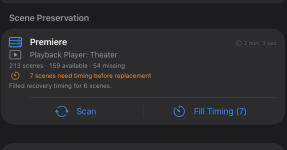
To my surprise, I had 213 scenes I had saved (in a dozen or so scripts.)

The process to keep them would have been too time consuming, so I would have opted just to keep a few.

But now?

What a great app!

Thank you @OUTATIME !! (And @Edgar for pointing it out!)
 
…this is amazing.

Thanks to @Edgar for posting this, I had been holding off on any upgrades that had scenes until I could check this out, and just wow.

To my surprise, I had 213 scenes I had saved (in a dozen or so scripts.)

The process to keep them would have been too time consuming, so I would have opted just to keep a few.

But now?

What a great app!

Thank you @OUTATIME !! (And @Edgar for pointing it out!)
I can’t seem to find this app
 
I can’t seem to find this app
For the iOS app, for now you have to get it through TestFlight. I will get it into the App Store soon. Thanks!

 
…this is amazing.

Thanks to @Edgar for posting this, I had been holding off on any upgrades that had scenes until I could check this out, and just wow.

To my surprise, I had 213 scenes I had saved (in a dozen or so scripts.)

The process to keep them would have been too time consuming, so I would have opted just to keep a few.

But now?

What a great app!

Thank you @OUTATIME !! (And @Edgar for pointing it out!)
1793442893430.pngAre there step by step instructions somewhere?
I thought I had saved all the timing, but looks like I messed up when I downloaded the upgraded/updated versions. (But still have saved a lot…)
 
View attachment 12556Are there step by step instructions somewhere?
I thought I had saved all the timing, but looks like I messed up when I downloaded the upgraded/updated versions. (But still have saved a lot…)
Oh wow, this is certainly a lot of scenes! I'm guessing this is by far the biggest use of this feature yet so please bear with me if we run into issues. I also see that this looks like a Premiere system? I'm not sure if that adds any issues, but let's see what we can do. I asked AI to write step by step instructions for this process since I don't have any yet. Please let me know if this is helpful. If you run into more trouble, please private message me through the forum and I'll see how I can help.


You may not have lost the timing you already saved. “Missing” means a scene isn’t currently found on your system; its saved record remains in Scene Shot List. The 54 missing scenes in your screenshot may still be rebuildable on the upgraded movies.

For movies you haven’t upgraded yet:

  1. Connect to your theater’s Wi-Fi and open Popcorn Ready → Settings → Scene Shot List. Check the system and Playback Player shown at the top.
  2. Tap Scan and let it finish. This saves records of the user-created scenes currently available. Check that the movies and scenes you want to preserve are listed.
  3. Tap Fill Timing → Continue, if shown. The app briefly plays each scene needing timing on the selected player and captures its recovery information. You’ll see movies/scenes changing on your theater screen while the app shows its progress. It processes them as a batch and stops playback when finished. Keep the app open and let it control the player.
  4. Check for remaining timing warnings before removing any original copies. Your screenshot says “Filled recovery timing for 6 scenes,” but it also says 7 scenes still need timing. The six is the result of the previous attempt, not confirmation that everything is finished. Keep the original copies for scenes still showing Timing incomplete.
  5. Download the 4K Cinematic version of the same movie/cut. Wait for the download to finish before removing the old 4K copy. Then follow the rebuilding steps below for any scenes that disappear. I’d work through one movie first before doing a large batch.
For movies you’ve already upgraded:

  1. Make sure the replacement movie is fully downloaded. On the same iPhone you used to preserve the scenes, open Settings → Scene Shot List and tap Scan. Scanning keeps previously saved scene records.
  2. Select Show → Rebuild. This lists missing scenes with saved start/duration information and a matching downloaded movie.
  3. Tap Rebuild beside a scene. This opens the reshoot tool. The replacement movie will start briefly on your selected player, then pause while the app checks its length and offers the available options.
  4. Choose Automatic Reshoot if offered. The app positions playback at the saved start, marks the beginning, plays through the saved scene duration, and marks the end. You may see chapter jumps, replay movements and pauses while it positions the movie. This uses actual playback, so allow time for the scene itself plus positioning and saving. Keep the app open and avoid operating the player yourself during the automatic process.
  5. Choose Assisted Reshoot if automatic isn’t offered, or if you want to check the boundaries yourself. Watch your theater screen as the app moves near the saved start. Adjust with the remote or the app’s Replay / Play/Pausecontrols, then tap Mark Start Here. The app plays ahead by the saved duration and pauses near the ending. Adjust it if needed, then tap Mark End Here. Assisted Reshoot can work when the movie’s runtime has changed or its original runtime wasn’t saved, provided the scene’s start time and duration were saved.
  6. Wait for the completion message, tap Done, then Play to check the rebuilt scene. Check its beginning, ending and name. Repeat for the remaining scenes—iOS currently rebuilds scenes individually.
If a missing scene doesn’t appear under Rebuild, switch Show → Archived:

  • Timing Missing: the archive lacks the scene’s start time or duration. Reshoot can’t reconstruct those missing details automatically.
  • Archived Only: the app hasn’t found a matching downloaded movie.
Redownloading the original 4K format isn’t a guaranteed way to recover missing timing. If the original user-created scene does reappear and can play, scan again and use Fill Timing before removing that copy. Downloading the movie alone doesn’t guarantee your personal scenes will return.

The archive saves automatically on your iPhone. Keep using that device and leave Popcorn Ready installed while completing the recovery.
 
As you can probably tell, this whole scene reshoot process is pretty complicated and can be finicky since it relies on playback on the actual player. To eliminate the need for all of this manual, or semi automated, work with user scenes we really need Kaleidescape to complete the feature for Portable Bookmarks so scenes can survive movie updates.

 
Thanks @OUTATIME!
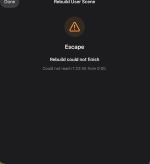
For a movie already upgraded, I get to step 6, but instead of completion, I get a long wait while it is working on finding the beginning of the scene, and then this:
Any thoughts on what I may have done wrong?
Thanks again.
 

Attachments

  • 1793473518675.png
    1793473518675.png
    64.8 KB · Views: 5
Thanks @OUTATIME!
For a movie already upgraded, I get to step 6, but instead of completion, I get a long wait while it is working on finding the beginning of the scene, and then this:
Any thoughts on what I may have done wrong?
Thanks again.
That one looks like a bug actually so I don't think you did anything wrong. I'm guessing that it didn't get the chapter of the scene start saved correctly. How it works is it goes to the next chapter and then skips back 10 seconds at a time quickly (since there are no supported jump forward commands). In this case, it seems to be starting at 0:00. Let me see if I can build in a workaround for that issue where it figures out the appropriate start chapter itself during playback. Stay tuned on that one...thanks!
 
Back
Top