• Thanks for visiting the Kaleidescape Owners' Forum

    This forum is for the community of Kaleidescape owners, and others interested in learning about the system, equipment, services, and the company itself.

    It is run by a group of enthusiastic Kaleidescape owners and dealers purely as a service to this community.

    This board is not affiliated in any way with Kaleidescape, Inc.
    For official technical support, product information, or customer service, please visit www.kaleidescape.com

    You can dismiss this box forever by clicking the "X" in the upper right corner of this message.
  • You are currently in "Guest" mode and not logged in with a registered account.

    The forum is free to use and most of the forum can be used by guests who are not registered....

    ... but we strongly encourage you to register for a full account. There is no cost to register for a full account.

    Benefits of registering for a full account:

    • Participate in the discussions! You must have a registered account to make posts on the forums. You will be able to start your own thread on a topic or question, or you can reply to other threads/discussions.
    • Use the "Conversation" feature (known as "private messaging" on other forums) to communicate directly with any of the other users here.
    • Access the Files area. The "resources" area of the forum contains many "Favorite Scene" and Script files that can dramatically increase the enjoyment of your Kaleidescape system. Go directly to great scenes in your favorite movies, created by other owners, and add automation to playback of your system with Scripts.
    • You won't see this annoying notice at the top of every screen!😊

    It's easy and free to register for the forum. Just click the "Register" button in the upper right corner of this page, and follow the instructions there.

    This box goes away for registered users.

Closed caption on iPad app

Yes.
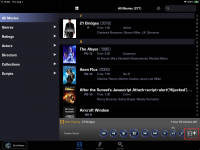
While a movie is playing, there are transport controls at the bottom of the movie list. Tap the button on the far right to expand those controls:
1722525831511.png
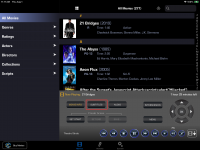
In the expanded view, tap the Subtitles button to cycle through the available subtitles:
1722525867534.png
Alternately, on the Remote tab, you can just press the MENU button to activate the onscreen Status overlay and then use the direction buttons to scroll to the subtitles tab and select the subtitle track you want.
 
John, thanks for the detailed instructions. My Strato V is tucked away in a closet and I don't have control system such as a Control 4. Too bad the included remote is IR instead of RF.
 
The mobile app also has a remote tab that you can use to control your Strato V via IP. And there's an IR receiver port on the back panel of the Strato V if you happen to have an IR repeater that leads into your equipment closet.
 
Back
Top